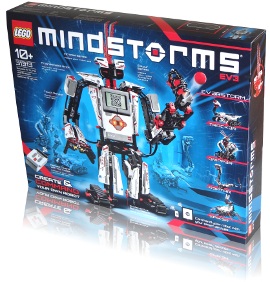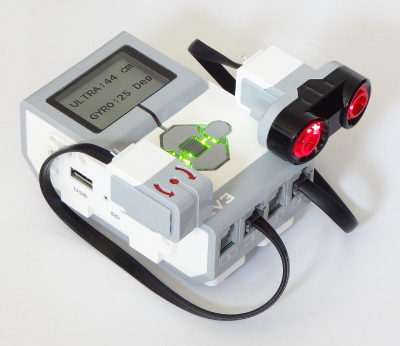
When you buy a LEGO MINDSTORMS EV3 Set, you can choose between the LEGO MINDSTORMS EV3 Home Edition and the EV3 Education Core Set (learn more about the differences here). The selection of sensors you get with each kit is slightly different. For example, the Home Edition set includes an Infrared Sensor and an Infrared Beacon, while the Education Core set comes with an Ultrasonic Sensor and a Gyroscopic sensor.
The EV3 brick in both sets is the same, making it possible to use any of these sensors regardless of which base set you have. However, the free LEGO MINDSTORMS EV3 Home Edition software does not come with programming blocks to control the Ultrasonic Sensor and the Gyroscopic sensor by default. Fortunately, LEGO offers these blocks as a free download from their website. These steps demonstrate how you can install these programming blocks in order to add full support for all your sensors.
In this example, I’ll demonstrate how you can install the Gyro Sensor block. Repeat the procedure to install additional Sensor blocks, such as the Ultrasonic Sensor block, the Temperature Sensor block, and the Sound Sensor block. You can follow the same steps to install blocks from third party sensor manufacturers, such as HiTechnic, Mindsensors, and Dexter Industries.
Step 1: Download the Block File
Download the block you would like to install:
- Ultrasonic Sensor Block
- Gyro Sensor Block
- Sound Sensor Block
- Temperature Sensor Block
- Energy Meter Block
Save the file (in our example, Gyro.ev3b) to your computer, and remember the download location.
Step 2: Import the Block
- Launch the LEGO MINDSTORMS EV3 software
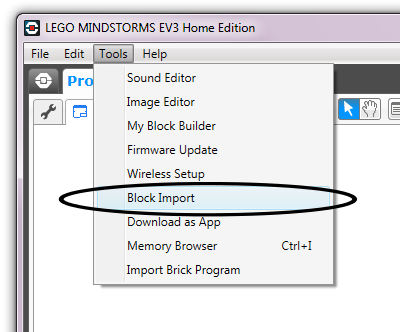
- Navigate to Tools, and click Block Import, as shown in the figure below.
- Click Browse, and select the file you downloaded earlier.
- Select Gyro.ev3b in the dialog, as shown in the figure below.
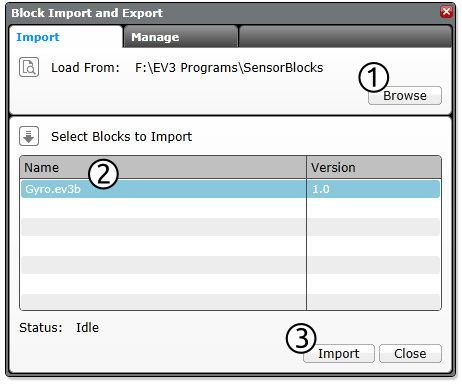
- Click Import.
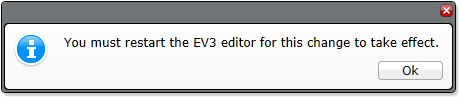
- Close and restart the EV3 software when prompted.
Step 3: Use the new Block
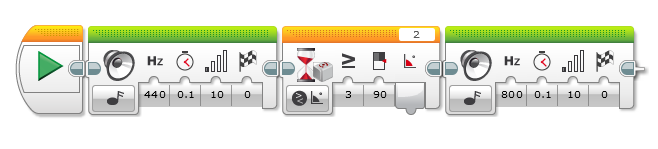
Once the software has restarted, you should be able to control the Gyro Sensor just like your others sensors, using Wait, Loop, Switch and Sensor blocks. In the following example program, the EV3 begins by playing a sound. Once you rotate the Gyro Sensor by 90 degrees, you’ll hear another sound and the program ends.