Tutorial: BRICK SORT3R

BRICK SORT3R can sort LEGO bricks by color and size.
Figure 1: BRICK SORT3R can sort LEGO bricks by color and size.

Always wanted to sort your LEGO bricks automatically? Now you can build a robot to do it for you! BRICK SORT3R can sort LEGO bricks by color and size. This page provides building and programming instructions to build BRICK SORT3R with your EV3 set.

The sorting mechanism is obscured by the white decoration panels. Can you figure out how the robot is able to detect the color and size of a LEGO brick before you build it using the instructions below? Watch the video of the robot in action to get a better idea of what it does and how it works.

1. Requirements

  • One LEGO MINDSTORMS EV3 set (#31313) to build BRICK SORT3R.
  • Some LEGO bricks to sort:
    • Red, yellow, green and blue bricks are preferred.
    • Use 2×4 bricks and 2×2 bricks.
    • After you’ve run the example program, you can modify the program to detect other colors and brick sizes.
  • Optional:
    • A set of small buckets or bowls to sort the LEGO bricks in.
    • You can modify the program to match the size of the buckets or bowls you use (see Discovery #133)
    • You can also build buckets with your own LEGO elements, as shown in the video.
    • If you do not have any buckets to use, you can simply have the robot drop the bricks on the floor, as shown on the picture above.

2. Building BRICK SORT3R

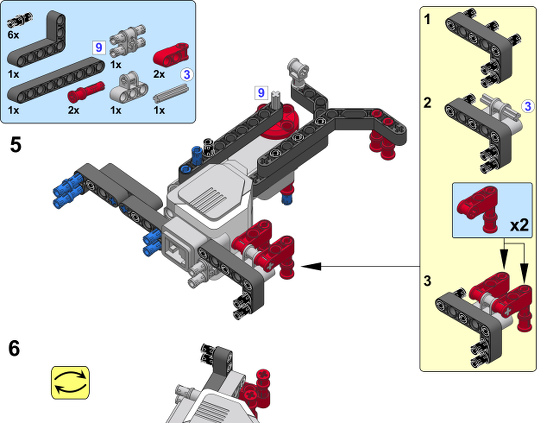
  • To begin, select the required pieces from your EV3 set, as shown below.
Select these parts to build BRICK SORT3R
Figure 2: Select these parts to build BRICK SORT3R
  • Click the image below to start building BRICK SORT3R, or download the PDF here.
BRICK-SORTER-Build
Figure 3: Click to view the building instructions

3. Programming BRICK SORT3R

  • Download the EV3 project file by clicking here. Save the file to your computer and unpack the Zip archive.
  • Download the BRICK SORT3R program to your robot.
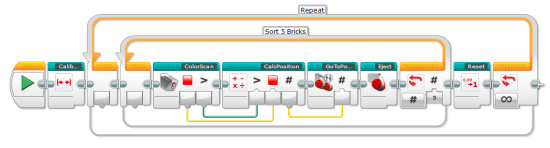
  • You can explore how the program works by reading the comments placed throughout the program.
program
Figure 4: Program overview

4. Running the program

  • Place some bricks in the chute, as shown in Figure 5.
  • Place the “reference” tower opposite to the bucket with big blue bricks, as shown in Figure 5. This gives the robot a fixed reference, so it knows where to find each bucket of LEGO bricks.
  • Place the robot between the buckets of LEGO bricks and the reference tower, as shown in Figure 5.
  • Start the program.
  • The robot will first drive away from the reference, and then drive towards it until the Infrared Sensor detects the reference.
  • The robot begins to sort bricks.
  • After sorting five bricks, the robot will reset itself by returning to the reference, before continuing to sort more bricks.
Position the BRICK SORT3R and the reference as shown.
Figure 5: Position the BRICK SORT3R and the reference as shown.

5. Further Exploration

Congratulations, you’ve finished your brick sorting machine! Are you curious to discover more about the design of this robot? Get started by trying some of the Discovery challenges below.

 Discovery #133: Different Bins!

You may be using differently sized sorter buckets than the custom built ones in the video. To ensure that your robot works properly, you’ll have to adjust the program accordingly. In the video, the robot must rotate the Medium Motor by 387 degrees to move the robot from one bucket to the next. You can measure the required amount of degrees with Port View (see Figure 6-4 on page 66) and turning the wheels manually. Once you’ve found the proper value for your setup, adjust your program with this value. To accomplish this, double click on the CalcPosition My Block to open it. You’ll find the 387 degrees value in the most right Math block. Increase or decrease this value as necessary.

Discovery #134: More Colors!

The example program can only sort red, yellow, green and blue bricks, but the Color Sensor can also detect black, white, and brown bricks. Can you expand the program to allow the robot to sort bricks with these colors as well?

Discovery #135: More Sizes!

The example program only distinguishes two sizes of bricks (2×4 and 2×2). Can you expand the program to allow the robot to sort more sizes? To test the program, add 2×3 and 2×6 bricks to your selection of bricks.

Discovery #136: Empty Chute!

The example program does not take any action if the robot runs out of bricks to sort. Can you expand the program to allow the robot to detect an empty chute? When the chute is empty, the robot should stop sorting and play an error sound.

Design Discovery #31: Rotational Sorting!

The current design places bricks in different buckets by driving to the left and right. Can you design a turn table base with one Medium motor for the BRICK SORT3R? This lets the robot drop bricks in different buckets placed around it. This would be a more efficient design for a factory, because it takes up less space. Hint: Use the turntable you designed in Design Discovery #18.